
Proceed as follows to print charts:
-

In either case, you will see the "Print chart" dialog box. -
You will see the "General" tab in the foreground. For information on the general setting options that you can make here, please refer to the Printingsection.
-
Click on the "Charts" tab to make the chart-specific settings,
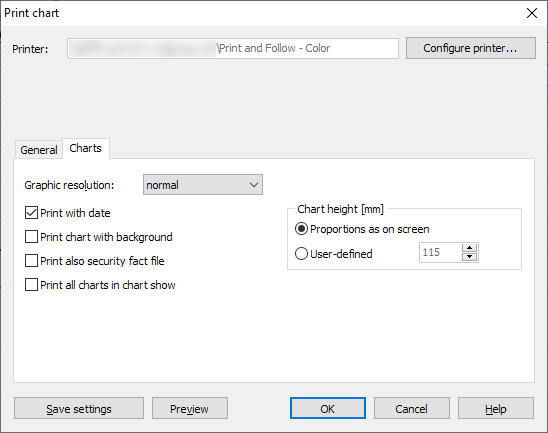
Options for printing charts:
Field
Description
Graphic resolution
If necessary, select a finer or coarser resolution for your printout from the list.
Print date
If this checkbox is activated, the current date and time are printed in the upper area.
Print chart background
Activate this checkbox if you want the background of the active chart to be printed. Deactivate it if you do not want the background to be printed.
You should deactivate this field for black and white printers.
Print securities profile
Activate this checkbox to print the data from the securities profile.
Print all charts of the chart show
Only active when the chart show is open.
Activate this checkbox if you want to print all charts from the currently open chart show.
Height of the chart [mm]
Select the "Custom" option to specify the exact height of the chart in millimeters. "Proportions as on screen" is activated by default.
-
Finally, confirm the "Print chart" dialog box with "OK" to print the chart.