
Filters must be linked to a table template to determine the filter content. The actual filter conditions are defined in this filter template. You choose whether you want to adopt a template unchanged or customize the template for the filter. In contrast to "normal" tables, which you will find under the templates , this table is purely a filter template and is not generally available. You can find out how to save your filter templates as a "normal" table and therefore as a template in the section Open filter template as table.
You select the filter template from the available table templates. You can do this when creating a filter or later using the "Select template..." button in the filter properties.
Proceed as follows to adjust the selected filter template:
-
Select the "Customize template" button in the filter properties. You can then adjust the filter template as required.
-

-
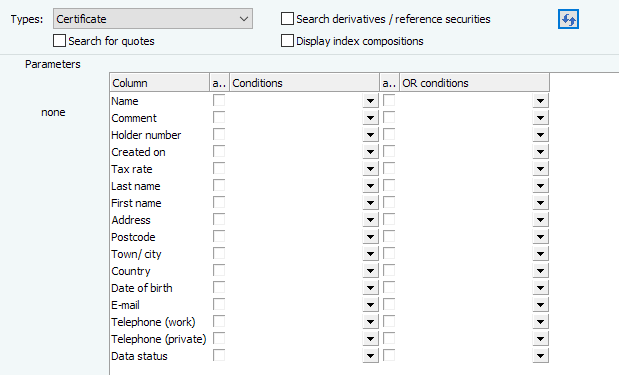
Make the desired filter settings here.
-
Then save the filter template (or filter) using the FILE, SAVE command.
Detailed information on the individual setting options can be found in the following sections:
- Object type list
-
Parameters for automatic evaluation
- Filter conditions on column results
- Configure input fields
- Operating the finder