
Hide drawings
To hide drawings from the open chart (but not delete them), deactivate the DRAWINGS command on the "Chart" tab.

Or press the <F6> button.
You can find out how to remove all drawings in a chart template in the section Delete all chart drawings in a template.
Delete selected user drawing
To delete the selected user drawing in the open chart, proceed as follows:
-
Double-click on the drawing in the chart. The drawing is highlighted and the drawing tools appear.
-
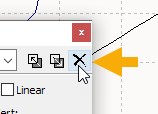
Select the "Delete" icon in the dialog box or the <ENTF> button to delete the selected object and confirm the subsequent prompt with "Yes".
Delete all user drawings
To delete all user drawings in the open chart, proceed as follows:
-

-
Confirm the subsequent query with "Yes"
The deletion of a drawing cannot be undone.