You can scroll between the charts using the arrow icons that appear in chart shows on the toolbar of the chart window. Alternatively, you can also use the keyboard.
|
Element |
Icon |
Description |
|---|---|---|
|
Scroll back |
|
Scroll back to the previous chart.
|
|
Scroll forward |
|
Scroll to the next chart.
|
|
Top of the list |
|
Jump to the top of the list.
|
|
End of the list |
|
Skip to the end of the list.
|
|
Select security |
|
The selection list of securities available in the chart show is displayed. Double-click or select and confirm with "OK" to switch directly to a specific security. Enter the first letter to jump to securities that are at the bottom of the list. |


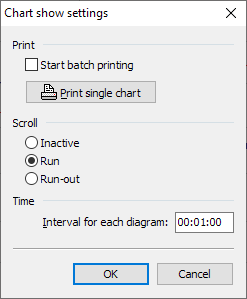
Double-click on the status display of the chart show (e.g. chart 6 of 29) to open the "Chart show settings" dialog box.

Here you can make the settings for automatic run-through or round robin.