
In the "Prepare collective order" dialog box, you can adjust the display by sorting the columns (in several levels).
The following options are available for sorting the columns:
Sort columns
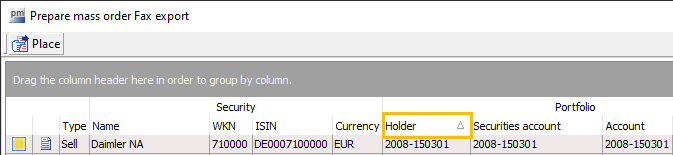
Click on a column heading to sort the list of orders by this column. A triangle appears on the right-hand side of the column header, indicating the current sorting direction.
To reverse the sorting, click on the column heading again.
Sort columns multi-level
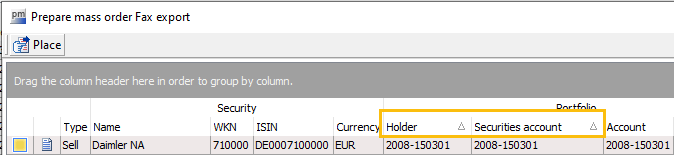
If you have sorted the list of orders by one column as described above, proceed as follows to sort by another column:
Hold down the <SHIFT> key and click on the column heading by which you want to sort the list in the second level. Here too, a triangle appears on the right-hand side of the column heading, indicating the current sorting direction.
To reverse the sorting on the second level, click on the column header again while holding down the <SHIFT> key.
In the example, the list is first sorted by owner and then by the "Depot" column.
Cancel sorting by a column
To cancel sorting by a column, hold down the <CTRL> key and click on the column header of the sorted column.