
If required, you can configure a proxy for the online search for securities via the Infront Portfolio Manager ribbon. Proceed as follows:
-
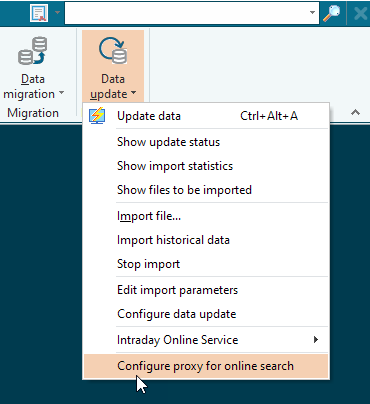
Select the command CONFIGURE PROXY FOR ONLINE SEARCH on the "Data maintenance" tab in the menu of the "Data update" icon in the Infront Portfolio Manager ribbon.
-
Select your proxy in the "Select proxies" dialog box that appears and configure it if necessary.

-
Confirm the configuration and close the dialog window with the "OK" button.
Details on the individual functions in the "Select proxies" dialog box:
|
Element |
Description |
|---|---|
|
New" button |
Select this button to create a new proxy. |
|
Delete" button |
Select this button to delete the proxy currently selected in the list. |
|
Properties" button |
Select this button to view or edit the properties of the currently selected proxy. |
|
Activate" button
|
Select this button to activate or deactivate the currently selected proxy. You can recognize the active proxy by the activated checkbox in the "Active" column. |
|
OK" button |
Select this button to confirm the entries and close the dialog box. |
|
Cancel" button |
Select this button to close the dialog box without saving any changes. |
|
Help" button |
Select this button to open the context-sensitive online help for the topic. |