
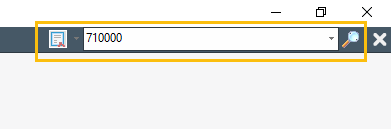
The search field is the easiest way to open a chart. Proceed as follows:
-
Click in the "Search for" field to the left of the search field and select "Securities" in the list (<CTRL>+<F>).
-
Enter the name or WKN of the security in the search field to the right of the Quick Search. The beginning of the name is also sufficient.
-
Confirm with <RETURN>. The object search appears with the search result of the securities found.
-
Double-click the desired security from the search results and the chart will open.
-

-
To display another security with the same settings in the chart window, click with the middle mouse button on the corresponding security in the Explorer.
-

-
In the search result of the object search, you can also select several hits by holding down the <CTRL> key when selecting (or the <SHIFT> key for consecutive hits) and thus open them together with the "OK" button.