
You can change the preset colors of the rows and columns individually.
Coloring rows
To change the row color, select the OPTIONS... command in the menu of the "General options" icon on the "Table" tab. The "Table settings" dialog box appears, in which you can edit various basic settings. Switch to the "Rows" tab with a mouse click.
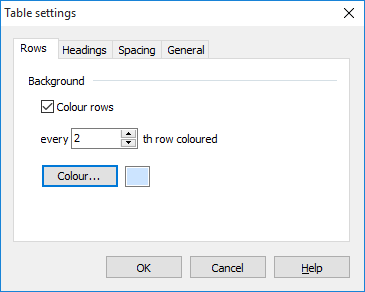
The default settings for the line color are displayed on this tab. The details of the individual items can be found in the following list:
|
Command |
Description |
|---|---|
|
Coloring rows |
Activate this checkbox to color the lines. |
|
Color every ...th line |
Defines how many lines are to be colored. The default setting is "Every 2. Line". |
|
Color |
Click on this button to open a dialog box in which you can specify the color. |
Coloring columns

A dialog box appears in which you can specify the color.