
Proceed as follows to enter an exact column width:
-
Select the desired column and select the COLUMN WIDTH command in the context menu of the column header.
-
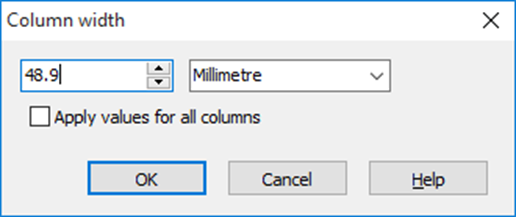
The "Column width" dialog box appears, in which there are two input fields. You can enter the width as a number in the first field and select the unit of measurement (millimeters, centimeters, etc.) in the second field.
-
If the set width is to be assigned to all columns in the table, activate the "Apply value to all columns" checkbox.
-
Confirm your entries with "OK".
If the "Autosize" function was activated, a corresponding message appears. To apply the new settings, you must deactivate the autosize function here. Otherwise, the autosize function will remain active and your changes will be discarded.
