
At the top of the money management tool you will see the toolbar. Use these functions to save or load your settings.
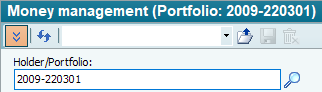
You will find the following functions here:
|
Element |
Icon |
Description |
|---|---|---|
|
Table view
|
|
Select this icon to switch to the more compact table view. In this view, the capital overview is "collapsed". Clicking on the icon again or pressing the <CTRL>+<A> key combination displays the capital overview again. |
|
Re-evaluate |
|
Select this icon to refresh the view. |
|
Settings" input field |
|
Here you can see the name of the currently selected setting set of the money management tool. If you want to save the current settings, enter a name for this set of settings here or overwrite an existing one. If you have saved several configurations, you can select them from the list and then apply them using the "Load settings" icon in the tool. |
|
Load settings |
|
Select this icon to load the settings set selected next to it into the tool. |
|
Save settings |
|
Select this icon to save the current settings under the name in the "Settings" input field. |
|
Delete settings record |
|
Select this icon to delete the current set of settings. |


