
Bond scenario analysis" module
Proceed as follows to add a new position to the portfolio variant:
-

-
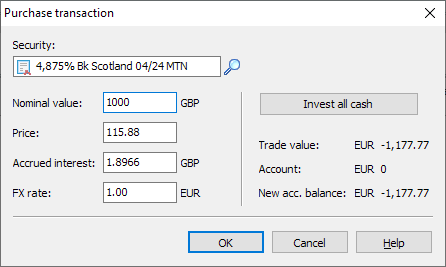
Enter your data in the "Purchase transaction" dialog box that appears.
-
Then confirm your entries with "OK".
The purchased bond now appears in the portfolio view.
In detail, the "Purchase transaction" dialog box contains the following elements:
|
Element |
Description |
|---|---|
|
Securities |
Enter the security to be entered here or search for it using the object search via the "Search" magnifying glass icon. |
|
Nominal value |
Enter the nominal value of the items to be recorded here. |
|
Course |
Enter the purchase price here. The most recent price is shown. |
|
Accrued interest |
Enter the accrued interest on the purchase here; this field is also filled automatically after selecting a bond. |
|
Dev. course |
The current exchange rate is shown here. |
|
Total cash invest |
If you have selected a security, use this button to calculate the maximum possible nominal value with the current account balance. |
|
Making out |
The account balance is reduced by this amount when the transaction is confirmed with the current settings. The field is automatically updated when changes are made. |
|
Account |
Current (cash) account balance before the transaction. |
|
Account new |
New (cash) account balance when the transaction is confirmed with the current settings. |
|
OK |
Select this button to record the transaction with the current settings. |
|
Cancel |
Use this button to close the "Purchase transaction" dialog box without the changes taking effect. |