
To change the parameters of an open performance chart, proceed as follows:
-
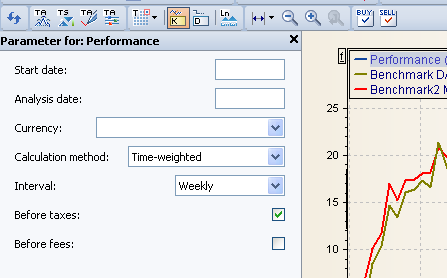
On the "Chart" tab, select the command Fade PARAMETERS IN AND OUT in the menu of the "Parameter" icon or press the key combination <CTRL>+<A>. The "Parameters of: Performance" is opened to the left of the performance chart.
-
Use the input fields and selection lists to redefine the parameters.
-

The details can be found in the following table. If you do not make any entries, the default settings are used.
|
Parameters |
Description |
|---|---|
|
Start date |
Enter the date for the start of the calculation here. The default setting is January 1 of the current calendar year. Right-click in the input fields for dates to quickly select the dates "Today", "Yesterday", "Start of month" or "Start of quarter" in the context menu.
|
|
Evaluation date |
Enter the evaluation time here. The default setting is the current date. |
|
Currency |
Select the desired currency from the list. |
|
Interval |
Here you can select whether the calculation should be carried out from one day to the next (daily), quarterly or at a different interval. |
|
Calculation type |
For the performance chart, "Internal interest rate", "Classic" (approximation), "Time-weighted" (exact) and "Time-weighted cum equity" can be set as the calculation type. For details, read the section Calculation of performance. |
|
Before fees |
Disabled by default. Activate this checkbox if you want to exclude all fees from the performance calculation. The product costs from the cost service are ignored here by default. |
|
Before taxes |
Activated by default. Uncheck this box if you want to include all taxes (exogenous by default) in the performance calculation. Please also read the section Configuring performance components. |