
To edit an order session, you need the "Edit session" system right. If necessary, read the chapter
User administration.
Proceed as follows to edit the status of a saved order session:
-
Select the "Order book" icon on the "Ordering" tab.
-
Unknown Attachment In the "Order book" dialog box that appears, select the desired session from the list of order sessions and then select the "Edit selected session" icon.
-
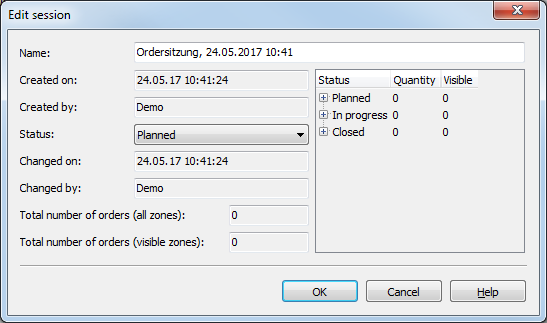
Make the changes for the order session in the "Edit session" dialog box that appears. The name and status of the sessions can be edited. Please refer to the following table for details.
-
Close the "Edit session" dialog box with "OK".
You will find the following information in the "Edit session" dialog box:
|
Element |
Description |
|---|---|
|
Name |
The name of the saved order session. You can edit the name here, but a name must always be entered. |
|
Created on |
Date and time of the first storage. |
|
Created by |
"Infront Portfolio Manager" user who created the order session. |
|
Status |
Select the desired order session status here. The "Status" selection list contains the following entries:
|
|
Modified on |
Date and time of the last change. |
|
Modified by |
"Infront Portfolio Manager" user who last changed the order session. |
|
Order status
|
You will find the following classification in the list of order statuses:
|
|
Total number of orders
|
The total number of orders in this order session. |
|
Total number of orders
|
The total number of orders visible to the logged-in "Infront Portfolio Manager" user for this order session. If this number differs from the "Total number of orders (all zones)", orders for this order session are in zones that are not activated for this user. |
Further details can be found in the section Display options of the order book.