|
Element |
Description |
|---|---|
|
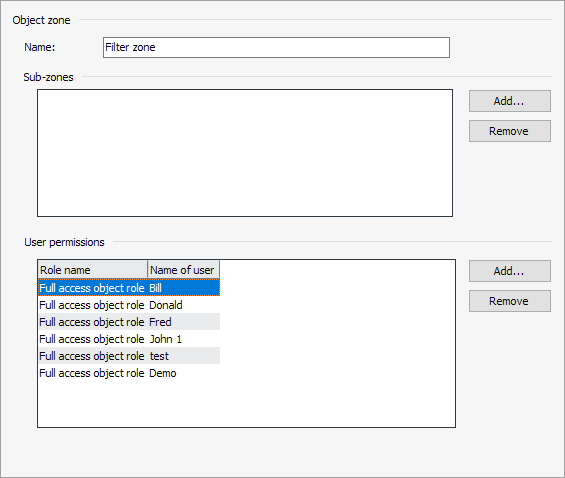
Name |
Globally unique name of the object zone. |
|
Sub-zones |
Use the "Add" button to assign further object zones as sub-zones to the currently selected object zone. In the dialog box that appears, you can select multiple zones by pressing and holding the <SHIFT> button during selection. You can use the "Remove" button to remove selected sub-zones from the list. If the domain feature is activated, you can only select zones from the same domain. You can also select the interface zones of the subordinate zones. |
|
User authorizations |
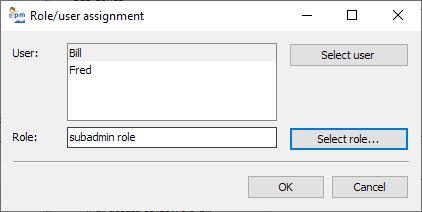
Take the user authorizations for this object zone from this table. Assign further users to this object zone using the "Add" button. The following "Role/user assignment" dialog box opens:
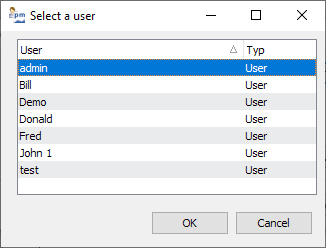
In the dialog box that appears, you can select multiple users by holding down the <CTRL> key (or <SHIFT> if the entries are one below the other) during selection:
Close the dialog box after selection with "OK". Then select the "Select role" button to assign a role to these users. Confirm the assignment in the "Role/user assignment" dialog box with "OK". Selected assignments can be deleted again using the "Remove" button. Multiple selection is also possible here. |